
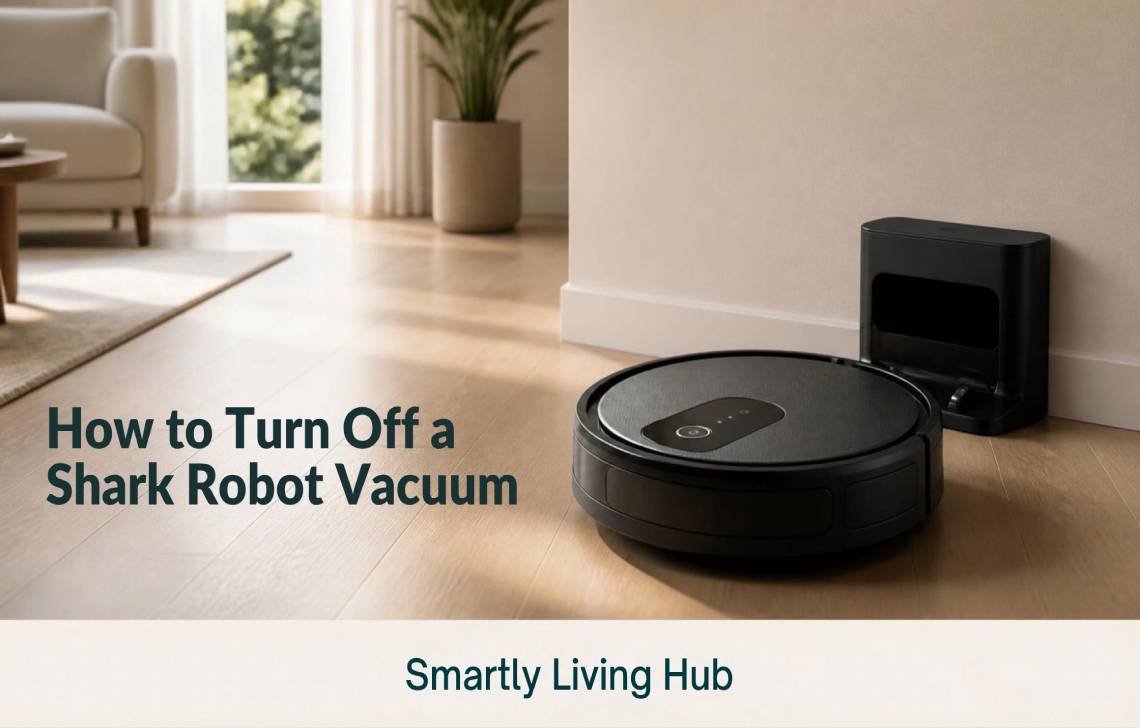
If you’re trying to figure out how to turn off a Shark robot vacuum, the correct method depends on the model. Shark does not use the same shutdown control on every robot.
For several Shark Matrix models, you can turn the robot off by taking it off the charging base and holding the DOCK button for 5–7 seconds. On Shark AI Ultra models such as the 2500 series, the shutdown procedure uses the CLEAN button for 5–7 seconds instead.
If you only want to stop the robot from cleaning, you usually don’t need to power it off. Pressing CLEAN can pause or stop a cleaning session on supported models, while DOCK can send the robot back to its charging base. Those actions are different from completely powering down the robot.
How to Turn Off a Shark Robot Vacuum
The safest approach is to identify your Shark model first and then use the shutdown procedure specified for that model.
For Shark Matrix models
On documented Shark Matrix models, follow these steps:
- Stop the cleaning session if the robot is currently cleaning.
- Take the robot off the charging or self-empty base.
- Press and hold the DOCK button for 5–7 seconds.
- Release the button once the robot powers down.
Shark Matrix documentation distinguishes the DOCK button’s normal function from its power function. A short press sends the robot back to the base, while holding the button for 5–7 seconds is used to turn the robot on or off on several Matrix models.
For Shark AI Ultra models
Some Shark AI Ultra robots use the CLEAN button instead.
For the AI Ultra 2500 series:
- Remove the robot from its base.
- Press and hold the CLEAN button for 5–7 seconds.
- Release it after the robot powers off.
The AI Ultra 2500 documentation specifically identifies the CLEAN button as the power-on and power-off control, while the DOCK button is used to stop cleaning and return the robot to the base.
The key point: don’t assume that CLEAN or DOCK is the power button on every Shark robot. Check the owner’s guide for your exact model if these instructions don’t match your robot.
Which Button Turns Off a Shark Robot Vacuum?
The answer depends on the model.
Shark robot | Button used for power off | Typical procedure |
Several Shark Matrix models | DOCK | Remove from base and hold for 5–7 seconds |
Shark Matrix Plus UR2360S | DOCK | Hold DOCK for 5–7 seconds |
Shark AI Ultra 2500 series | DOCK | Remove from base and hold CLEAN for 5–7 seconds |
Other Shark robot models | Model-specific | Check the owner's guide |
For example, the Shark Matrix Plus UR2360S documentation says the DOCK button turns the robot on or off when held for 5–7 seconds. It separately identifies CLEAN as the button used to start or pause a cleaning session.
The Shark AI Ultra 2500 documentation gives a different procedure: hold CLEAN for 5–7 seconds to power the robot off.
This model variation is why generic instructions such as “hold the power button” aren’t always helpful. Some Shark robot vacuums don’t have a button labeled Power at all.
How to Turn Off a Shark Robot Without a Power Button
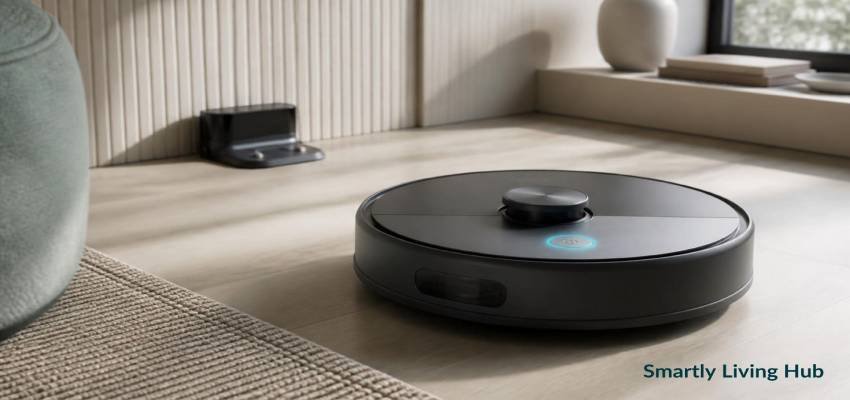
Yes, some Shark robots can be turned off even though they don’t have a button labeled “Power.” The CLEAN or DOCK button may perform the power function, depending on the model.
If you’re following How to Turn Off a Shark Robot Vacuum instructions but cannot find a dedicated power button, check whether your model uses CLEAN or DOCK as the power control.
For example:
- Matrix models: the DOCK button can be the power control.
- AI Ultra 2500: the CLEAN button is used to power the robot on or off.
- A short press may have a completely different function from holding the button for several seconds.
So if you’re searching for how to turn off Shark robot vacuum without power button, don’t look for a hidden physical switch first. Identify the model and check which button the owner’s guide assigns to power control.
Shark provides manuals through its official support site, where you can search for your device model.
How to find your Shark robot model
Look for the model number on the robot, its packaging, the original documentation, or the SharkClean app.
Once you have the model number, search Shark’s official manuals rather than relying on instructions written for a different Shark robot.
Stop vs. Dock vs. Power Off: What's the Difference?
These three actions are easy to confuse.
Action | What happens |
Pause/stop cleaning | The robot stops its current cleaning activity but may remain powered on |
Send to dock | The robot travels back to the charging base |
Power off | The robot's operating power is switched off using the model-specific procedure |
For example, on the Matrix Plus UR2360S, pressing CLEAN again pauses the cleaning session, while pressing DOCK sends the robot back to the base. Holding DOCK for 5–7 seconds is the separate power-control action.
The AI Ultra 2500 works similarly in concept, but its buttons are assigned differently: CLEAN controls the power and cleaning session, while DOCK sends the robot back to the base.
If you just want the robot to stop cleaning
You usually don’t need to completely power it down.
Use the normal pause/stop control specified for your model.
If you want the robot to recharge
Use the DOCK function to send it back to its charging base.
If you need the robot completely powered off
Use the model-specific power-off procedure.
This distinction is particularly useful if you’re about to clean the robot, remove a brushroll, clear an obstruction, or perform other maintenance.
How to Stop a Shark Robot While It Is Cleaning
If your Shark robot is currently moving around the house, you have two different options.
Option 1: Pause the cleaning cycle
On documented Matrix models, pressing CLEAN while the robot is cleaning pauses the cleaning session.
On the AI Ultra 2500, pressing CLEAN starts or stops the cleaning session.
Option 2: Send it back to the dock
Press the DOCK button to tell supported models to return to the charging base.
For example, Shark’s Matrix documentation identifies DOCK as the control for stopping cleaning and sending the robot back to its base.
If you only need the robot out of the way, sending it home is generally more convenient than completely powering it off.
Can You Turn Off a Shark Robot With the SharkClean App?
The SharkClean app can control cleaning functions on compatible robots, but you should not assume that the app’s pause or dock commands completely power off the robot.
Shark documentation describes app and voice-control functions such as starting cleaning, pausing the robot, and sending it back to the base.
That means there is an important difference between:
- Pause from the app
- Send to dock from the app
- Physically power off the robot
If you specifically need the robot completely powered down, use the physical shutdown procedure in the owner’s guide for your model.
What if you can't reach the robot?
If your model is still connected to the SharkClean app, you can use the available pause or dock controls to stop its movement or send it home.
Once it is accessible, follow the model-specific power-off procedure if you need it completely off.
Don’t attempt to open the battery compartment or disconnect internal battery wiring just because the normal power button isn’t responding. Shark’s manuals state that the robot contains electrical and moving components and should not be modified or repaired outside the instructions provided by the manufacturer.
What If the Power Button Doesn't Work?
If the robot doesn’t respond when you hold the expected button, try these steps.
1. Confirm that you're using the correct button
This is the first thing to check.
A Matrix robot may use DOCK for power, while an AI Ultra 2500 uses CLEAN.
Using the wrong button can make the robot appear unresponsive even though the control is functioning normally.
2. Take the robot off the base if the manual requires it
Several Shark models specify that the robot should be removed from its charging base before using the power-off procedure.
Follow the instructions for your exact model rather than assuming every Shark robot behaves the same way.
3. Hold the button for the full required period
A quick press isn’t the same as holding the button for 5–7 seconds.
For supported Matrix and AI Ultra models, the documented power-off period is approximately 5–7 seconds.
4. Check whether the robot is actually in Sleep Mode
Some Shark robots can enter Sleep Mode when they are idle away from the charging base.
For example, Shark Matrix documentation says that after 10 minutes of being idle away from the dock, the robot can enter Sleep Mode. Its indicator lights turn off, while the battery and Wi-Fi lights remain on. Pressing a button wakes the robot.
So a robot with dark indicator lights isn’t necessarily completely powered off.
5. Use the model's troubleshooting procedure
If the robot is frozen or has a connectivity problem, the troubleshooting procedure may involve a longer button hold than the normal power-off procedure.
For example, the AI Ultra 2500 documentation describes holding CLEAN for 12 seconds as part of a reboot procedure. If you need more detailed instructions, see our guide on how to reset a Shark robot vacuum. Its normal power-off procedure uses 5–7 seconds.
Don’t substitute one procedure for another unless the documentation for your model says to do so.
Does Putting a Shark Robot on the Dock Turn It Off?
Not necessarily.
Putting the robot on its charging base normally allows it to charge. It does not automatically mean that the robot has been completely powered off.
For example, Shark documentation describes charging indicators that remain illuminated while a robot is charging, and it separately describes a power-off procedure for certain Matrix and AI Ultra models.
Think of the dock as the robot’s charging and home position, not automatically its off switch.
If your goal is simply to stop cleaning and recharge the battery, docking is appropriate. If your goal is complete shutdown, follow the model-specific power-off instructions.
Should You Turn Off the Shark Robot Before Cleaning It?
Yes, use the manufacturer’s power-off procedure before performing maintenance that requires handling the robot or its moving parts.
The AI Ultra owner’s guide specifically instructs users to turn off the robot before maintenance.
This is particularly relevant before:
- Removing tangled hair
- Cleaning the brushroll
- Working around the wheels
- Cleaning sensors
- Handling components underneath the robot
- Performing troubleshooting that requires physically handling the unit
For general robotic vacuum maintenance, see Consumer Reports’ guide to cleaning a robotic vacuum, which covers cleaning brushrolls, sensors, wheels, and filters.
If you’re also comparing different types of robot vacuums for everyday cleaning, see our guide to the best robot vacuum and mop combo.
Don’t rely solely on a paused cleaning cycle if the maintenance task requires you to handle moving components.
How to Know If Your Shark Robot Is Actually Off
The exact indicators vary by model, so don’t use one universal light pattern to determine whether every Shark robot is powered off.
For example, Shark Matrix documentation says that in Sleep Mode the indicator lights can turn off while the battery and Wi-Fi lights remain on.
A better approach is to use the model’s documented power-off procedure and then check its behavior.
If you’re unsure, look up the exact owner’s guide using the model number through Shark’s official support/manuals page.
Final Verdict
The answer to how to turn off a Shark robot vacuum isn’t the same for every Shark model.
For several Shark Matrix robots, remove the robot from the base and hold DOCK for 5–7 seconds. For Shark AI Ultra 2500 models, the documented procedure is to remove the robot from the base and hold CLEAN for 5–7 seconds.
If you only want to stop cleaning, use the normal CLEAN or DOCK function instead of completely powering down the robot. And if your Shark doesn’t have a button labeled Power, don’t assume something is missing—the power function may be assigned to CLEAN or DOCK.
For the most accurate instructions, identify your exact model and use the corresponding Shark owner’s guide. Shark maintains a searchable library of product manuals on its official support site.
If you’re maintaining the robot, remember the key distinction: pausing a cleaning cycle is not necessarily the same as turning the robot’s power off.
FAQs
Does pressing CLEAN turn off a Shark robot?
Not always. On some models, CLEAN is used to start or pause/stop cleaning; on certain AI Ultra models, holding CLEAN for 5–7 seconds also powers the robot off. The function depends on the model.
Does pressing DOCK turn off a Shark robot?
Usually, a normal press of DOCK tells a compatible robot to return to its charging base. On several Matrix models, holding DOCK for 5–7 seconds is the separate power-off function.
Can I turn off my Shark robot from the SharkClean app?
The app supports remote cleaning controls on compatible models, including functions such as pausing and sending the robot to its base. However, those commands should not automatically be treated as a complete physical power-off. Use your model’s manual for the actual shutdown procedure.
Why are the lights off if my Shark robot isn’t completely powered off?
Some Shark robots enter Sleep Mode after being idle. On documented Matrix models, the main indicator lights can turn off while battery and Wi-Fi indicators remain active.