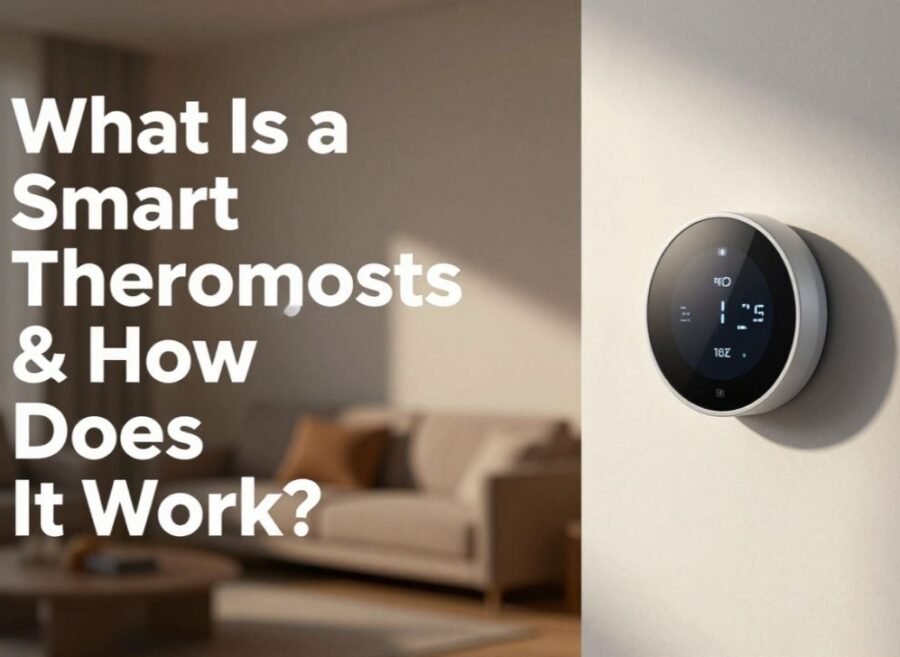

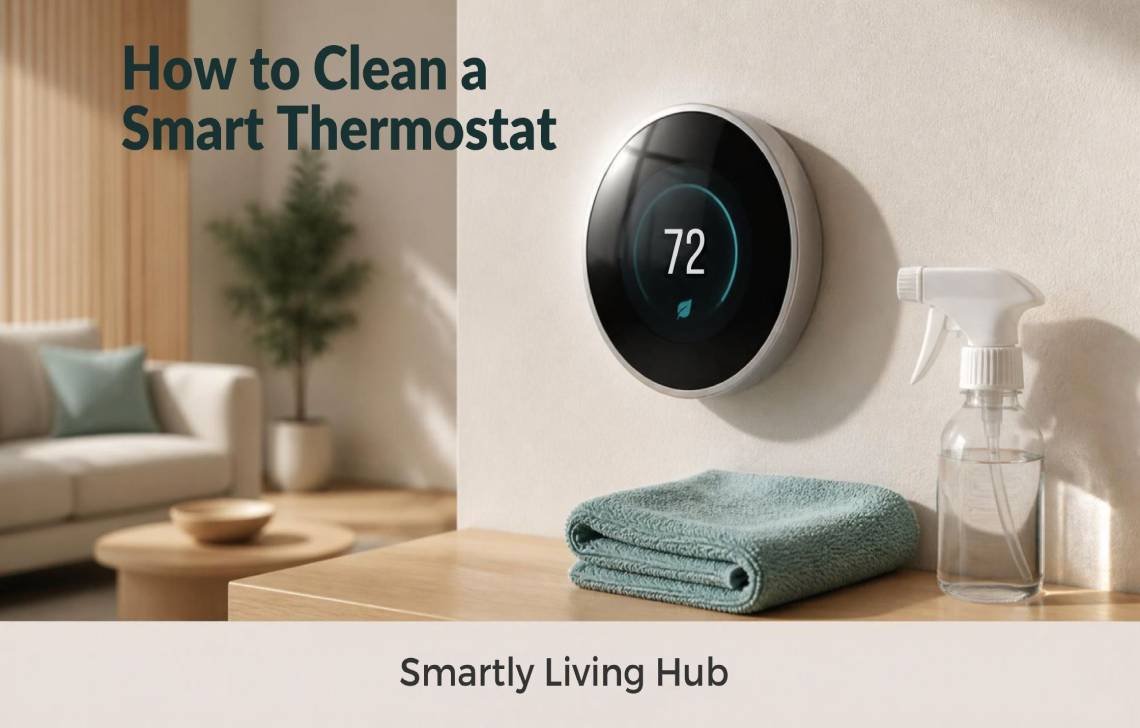
A smart thermostat can collect dust, fingerprints, and grime just like any other device mounted on a wall. Fortunately, how to clean a smart thermostat is usually simple: use a soft cloth, avoid excess moisture, and never push cleaning tools or liquids into the thermostat.
The important part is knowing what you can safely clean yourself and what you should leave alone. Some thermostats also have a dedicated screen-cleaning mode that temporarily disables the touchscreen.
Quick Answer: How Do You Clean a Smart Thermostat?
To clean a smart thermostat, first check the manufacturer’s instructions for your model. Then gently remove loose dust with a soft, lint-free cloth. For fingerprints or light grime, use a cloth that is only slightly damp if the manufacturer permits it. Never spray liquid directly onto the thermostat, use abrasive cleaners, or insert objects into vents or openings.
If your thermostat has a Clean Screen setting, activate it before wiping the display.
What You Need
For basic smart thermostat cleaning, you generally need:
- A soft, lint-free microfiber cloth
- A second dry cloth if needed
- A small amount of water, only if your manufacturer’s instructions allow it
- Your thermostat’s cleaning instructions or user manual
You normally do not need harsh household cleaners, abrasive sponges, brushes, or specialized tools.
The exact cleaning products allowed can vary by manufacturer and model, so the owner’s manual should take priority.
How to Clean a Smart Thermostat Step by Step
1. Check the Manufacturer's Cleaning Instructions
Before cleaning, identify your thermostat model.
Smart thermostats from different manufacturers can have different screen materials, cleaning recommendations, and cleaning modes. For example, some Resideo touchscreen thermostats include a setting specifically designed to temporarily lock the screen while you clean it.
If you have a Nest thermostat, Google provides model-specific cleaning guidance as well.
If you cannot find the instructions, start with the safest general approach: a soft, dry, lint-free cloth and gentle pressure.
If you’re also considering replacing an older thermostat, you can compare smart thermostat options to understand the features and maintenance considerations of different models.
2. Activate Clean Screen Mode if Your Thermostat Has It
Some touchscreen thermostats include a Clean Screen or similar setting.
This is useful because touching the display while wiping it can accidentally change temperature or other settings.
On supported Resideo models, the Clean Screen function temporarily disables the touchscreen so it can be wiped without accidentally changing thermostat settings. If you’re comparing different smart thermostat models and their controls, see our Nest Learning Thermostat vs Ecobee Smart Thermostat comparison.
If your thermostat does not have this feature, simply avoid pressing buttons or interacting with the screen while cleaning.
3. Remove Loose Dust First
Start with a dry, soft microfiber or lint-free cloth.
Gently wipe:
- The thermostat display
- The outer edges
- The sides
- The visible lower area
- The surrounding exterior surface
Use light pressure rather than scrubbing.
Removing loose dust before using any moisture helps prevent dust and grime from being dragged across the display.
4. Clean the Thermostat Screen
If the screen has fingerprints or light smudges, gently wipe it with a soft cloth.
If your manufacturer’s instructions permit a slightly damp cloth, use only a small amount of moisture. The cloth should never be dripping wet.
For touchscreen thermostats, avoid pressing hard on the display.
A simple technique is:
- Wipe the screen gently with the cloth.
- Work across the display rather than aggressively scrubbing one spot.
- Use a dry section of the cloth to remove remaining moisture or streaks.
- Check the screen from different angles for fingerprints or residue.
Never spray water or cleaner directly onto the screen.
5. Clean Around the Edges and Vents Carefully
Dust can accumulate around small openings or grille areas on some thermostats.
Clean the exterior around these areas with a soft, dry cloth.
Do not push a cotton swab, toothpick, brush, paper, or other object into thermostat openings unless the manufacturer specifically instructs you to do so.
For example, Google warns against inserting objects into the thermostat’s vent holes because doing so can damage temperature and humidity sensors.
The goal is to remove visible surface dust without disturbing the internal components.
6. Clean Around Thermostat Sensors Without Touching the Sensor
Many smart thermostats use sensors to monitor things such as temperature, humidity, motion, or occupancy.
This is why how to clean thermostat sensors requires a little more caution than simply cleaning a glass screen.
If the sensor area is externally accessible, gently remove surface dust with a soft cloth.
Do not:
- Poke the sensor
- Scrape the sensor
- Spray cleaner into the sensor opening
- Insert compressed-air nozzles directly into openings
- Disassemble the thermostat just to reach internal sensors
If dust appears to be trapped inside the thermostat, consult the manufacturer’s instructions or contact support rather than taking the unit apart.
7. Wipe the Thermostat's Exterior
Once the screen and sensor area are clean, wipe the remaining exterior surfaces.
Pay attention to:
- The sides
- The lower edge
- Areas around the mounting plate
- Frequently touched surfaces
For products that allow cleaning solutions, follow the manufacturer’s instructions about which products are safe.
Do not assume that a cleaner safe for a phone or glass surface is automatically safe for your thermostat.
8. Let the Surface Dry Completely
After cleaning, allow any remaining moisture on the exterior to dry.
The thermostat should not have visible drops or moisture collecting around openings, buttons, rings, or edges.
Once the device is dry, return it to normal operation if you used a screen-cleaning mode.
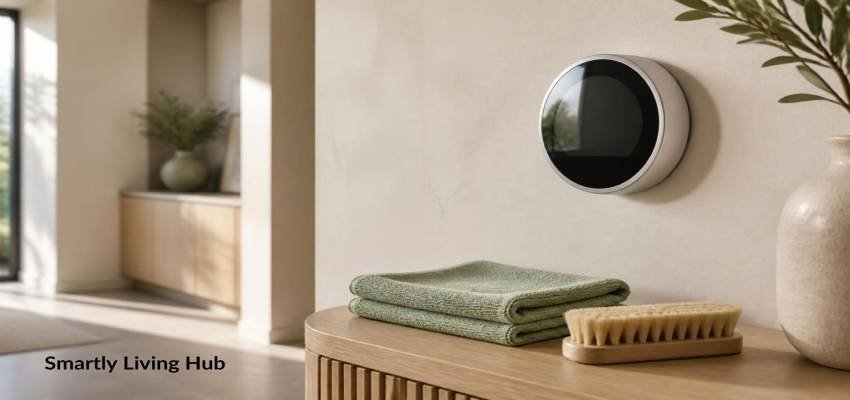
What Should You Avoid When Cleaning a Smart Thermostat?
The biggest cleaning mistakes usually involve too much liquid, excessive pressure, or trying to clean inside the device.
Do Not Spray Cleaner Directly on the Thermostat
This is one of the most important rules.
If your model permits a cleaning solution, follow its instructions. Some manufacturers specifically instruct users to apply the liquid to a cloth rather than spraying the thermostat itself.
Direct spraying can allow liquid to reach areas that were never designed to be wet.
Do Not Use Abrasive Materials
Avoid rough sponges, abrasive pads, powders, and other materials that can scratch or damage the surface.
A soft lint-free cloth is a safer starting point.
Do Not Push Objects Into Vents
Small openings may provide access to sensors or other internal components.
Do not try to remove dust by pushing objects into them.
If you cannot remove the dust from the exterior, stop rather than forcing a cleaning tool inside.
Do Not Pour Water Onto the Device
A thermostat is an electronic device, not a washable household fixture.
Even if the outside surface looks waterproof, that does not mean the entire device can safely tolerate liquid exposure.
Do Not Disassemble the Thermostat Just to Clean It
Routine cleaning should normally be an exterior task.
Opening the thermostat can expose wiring or components and may create unnecessary risk. If internal cleaning appears necessary, follow the manufacturer’s service instructions or contact a qualified professional.
How to Remove Dust From a Smart Thermostat
For ordinary surface dust, the safest approach is usually very simple:
- Use a dry, soft, lint-free cloth.
- Gently wipe the display.
- Wipe the exterior edges.
- Carefully clean around visible vents and sensor areas.
- Avoid inserting anything into openings.
- Check the thermostat for remaining dust.
You generally do not need a powerful vacuum, compressed air, or a cleaning brush for normal surface dust.
If dust appears to have entered the internal housing, the situation is different. Do not assume that more aggressive cleaning is better.
How Often Should You Clean a Smart Thermostat?
There is no universal cleaning schedule that applies to every smart thermostat.
Instead, inspect the thermostat periodically and clean it when you notice:
- Visible dust
- Fingerprints
- Smudges
- Dirt around the edges
- Dust around accessible openings
Homes with pets, construction dust, smoking, or higher levels of airborne dust may require more frequent exterior cleaning.
Remember that thermostat cleaning is only one part of HVAC maintenance. Regular filter maintenance and professional HVAC inspections are separate tasks and can have a much larger effect on overall system operation.
Does Cleaning a Smart Thermostat Improve Temperature Accuracy?
Cleaning the exterior can remove dust and grime, but you should not assume that cleaning alone will fix inaccurate temperature readings.
A smart thermostat’s temperature measurement depends on its internal sensors, installation location, software, HVAC system, and other factors.
If your thermostat continues to show unusual temperatures after the exterior is clean, investigate the manufacturer’s troubleshooting guidance rather than repeatedly cleaning the device.
Also check whether the thermostat is installed near a heat source, direct sunlight, or another location that could affect temperature measurements.
What If the Thermostat Screen Is Very Dirty?
If a normal dry-cloth cleaning does not remove the grime, check the manufacturer’s instructions before using any cleaning solution.
Some manufacturers allow specific screen-cleaning products or diluted cleaning approaches, while others recommend only particular methods.
For example, Google provides different cleaning instructions for Nest products, including guidance on soft cloths and approved cleaning options for applicable models.
The important rule is:
Manufacturer instructions come before generic cleaning advice.
What If Dust Is Inside the Thermostat?
Do not automatically remove the thermostat from the wall or open its housing.
Visible dust on the outside is a normal cleaning task. Dust that appears to be inside the housing may require a different procedure.
If you notice:
- Dust behind the display
- Debris inside sensor openings
- A sensor that appears obstructed
- Unusual temperature readings
- Persistent system problems
check the model-specific manual or contact the manufacturer’s support service.
If the thermostat requires electrical work or wiring access, follow the manufacturer’s safety instructions and consider professional assistance.
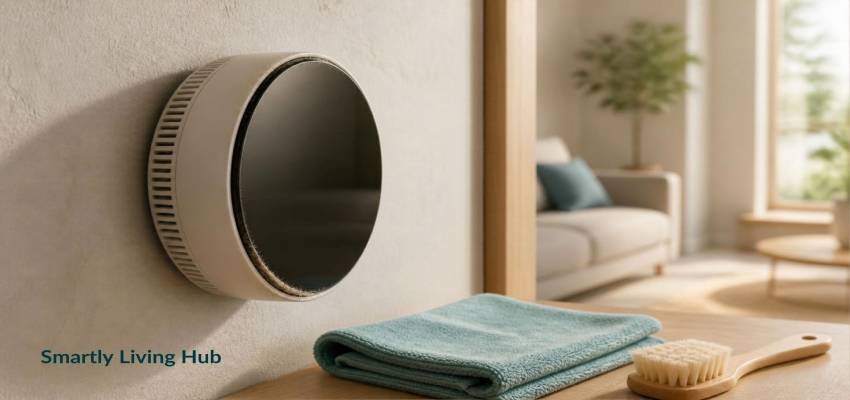
Smart Thermostat Cleaning vs. HVAC Maintenance
Cleaning the thermostat is useful, but it should not be confused with maintaining the HVAC system itself.
A clean thermostat does not replace:
- Replacing or cleaning HVAC filters
- Professional HVAC inspections
- Cleaning HVAC coils when required
- Checking airflow
- Checking condensate drainage
- Inspecting electrical connections
- Servicing heating and cooling equipment
For broader HVAC maintenance, the ENERGY STAR HVAC maintenance checklist recommends regular professional checkups and includes items such as checking thermostat settings, electrical connections, and condensate drainage.
For that reason, cleaning your thermostat should be viewed as a simple maintenance task rather than a substitute for HVAC service.
Smart Thermostat Cleaning Checklist
Use this quick checklist when cleaning:
Task | Safe approach |
Remove surface dust | Use a soft, lint-free cloth |
Clean fingerprints | Gently wipe the screen |
Use moisture | Only when the manufacturer permits it |
Clean touchscreen | Use Clean Screen mode if available |
Clean sensor area | Wipe the accessible exterior gently |
Clean vents | Remove surface dust without inserting objects |
Use cleaning spray | Never spray directly unless the manufacturer specifically says otherwise |
Open thermostat | Avoid unless service instructions require it |
Clean internal components | Follow manufacturer guidance or seek professional help |
Final Takeaway
Learning how to clean a smart thermostat does not require complicated tools. For routine cleaning, focus on the exterior: gently remove dust, wipe fingerprints from the screen, and keep moisture away from openings and internal components.
The most important rule is to follow your thermostat manufacturer’s instructions. Cleaning recommendations can differ between models, especially when it comes to disinfectants, screen cleaners, and removing the display.
If your thermostat has a dedicated cleaning mode, use it. If you find dust inside the housing or around internal sensors, do not force your way inside just to clean it.
A gentle cleaning routine is usually enough to keep the thermostat looking clean without creating unnecessary risk.
FAQs
What is the safest way to clean a smart thermostat?
The safest general approach is to use a soft, lint-free cloth and gently wipe the exterior and screen. If moisture or cleaning products are permitted for your model, follow the manufacturer’s instructions. Never spray liquid directly onto the thermostat unless the manufacturer specifically says it is safe.
Can I use a wet cloth to clean my smart thermostat?
Some manufacturers permit a slightly damp cloth, but the exact recommendation varies by model. The cloth should not be dripping wet, and liquid should not collect around vents, buttons, edges, or sensor openings.
How do I clean a smart thermostat screen?
If your thermostat has a Clean Screen mode, activate it first. Then gently wipe the display with a soft, lint-free cloth. For stubborn marks, use only the cleaning method approved by the thermostat manufacturer.
How do I remove dust from a smart thermostat?
Use a soft, dry cloth to gently remove surface dust. Avoid pushing cotton swabs, toothpicks, brushes, or other objects into vents or sensor openings. If dust is trapped inside the thermostat, consult the manufacturer’s instructions.
Can I use glass cleaner on a smart thermostat?
Do not assume that glass cleaner is safe for every smart thermostat. Some Resideo models specifically permit glass cleaner when applied to a cloth, while other manufacturers give different instructions. Always check your model’s documentation first.